How to Make AI Product Photography for E-Commerce
Turn a plain product photo into clean catalog shots and lifestyle scenes with AI — start from a good source image, prompt the environment and light, and keep the product accurate across a whole catalog.
To make AI product photos, start from a clean, well-lit source photo of the real product, then prompt the environment, lighting and styling you want around it. AI enhances and restages — it can't rescue a blurry or badly lit source. In Adkeet you upload the product into the Adkeet editor and generate catalog and lifestyle variations while the product stays the one you actually sell.
Key takeaways
- Source quality is the ceiling — a blurry photo stays blurry; light the product well first.
- Center the product, avoid harsh shadows and clutter in the source shot.
- Prompt the environment, light and mood — not the product, which comes from your image.
- Generate multiple scenes (clean catalog, lifestyle, seasonal) from one source.
- Keep the product accurate; tiny logos and text are the first things to check.
Step 1 — Start with a good source photo
AI restages your product; it doesn't fix bad photography. Shoot (or pick) a source where the product is centered, in focus and evenly lit, with a clean background and no distracting shadows. A better source is the single biggest quality lever.
Step 2 — Upload and prompt the scene
Drop the product into the Adkeet editor and describe the world around it: surface, background, light and mood — "on a sunlit marble counter, soft morning light, minimal props." You're directing the set, not redrawing the product. Not sure how to phrase it? How to Write Better AI Video Prompts applies to stills too.
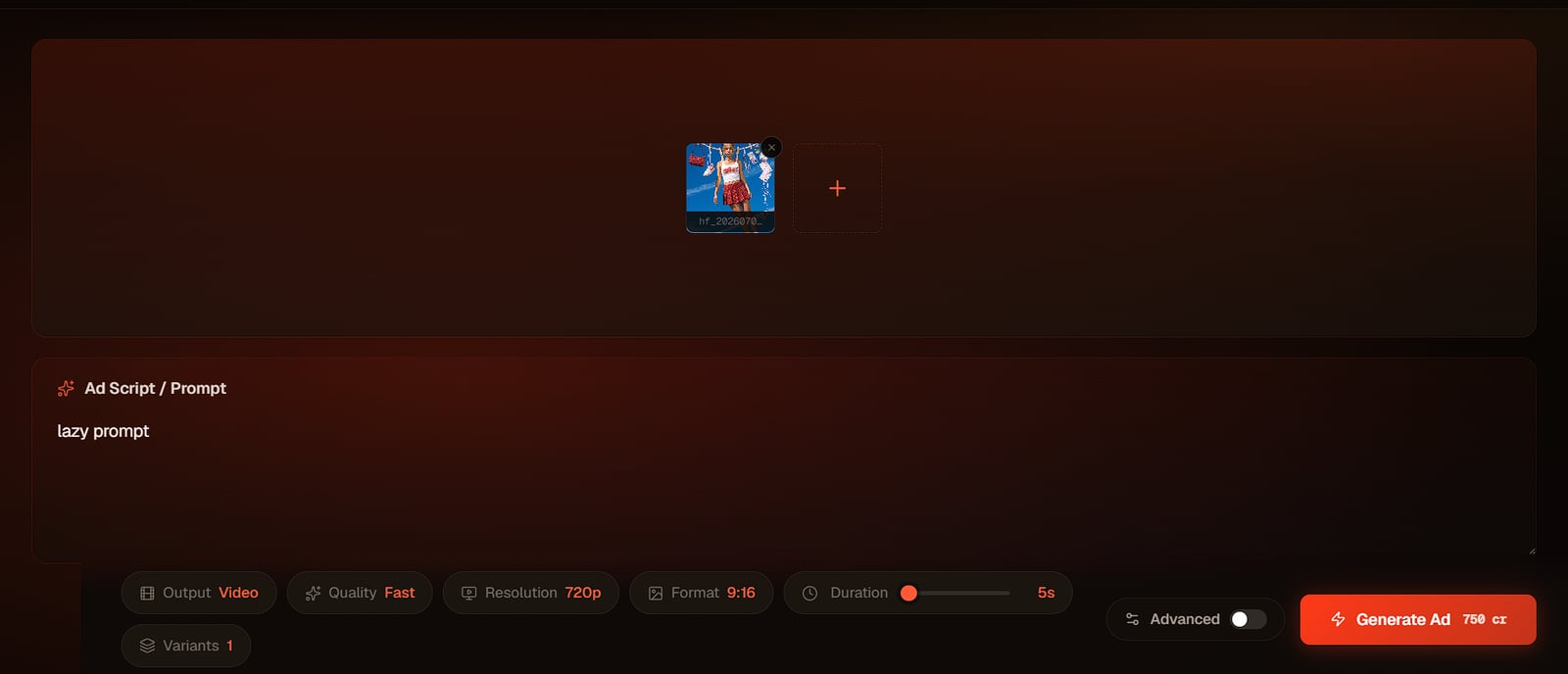
Step 3 — Generate a full set from one product
From one source you can produce clean packshots for the catalog, lifestyle scenes for the storefront, and seasonal variations for campaigns — the kind of range a full photoshoot delivers, without rebooking a studio per look.
Step 4 — Add a model with a consistent face (optional)
For on-model or held-product shots, use a locked AI actor so the same model appears across your catalog and ads — see How to Create an AI Actor for Videos and Advertisements.
Limitations & common mistakes
- AI can't fix a fundamentally bad source — a blurry or badly lit photo stays that way.
- Small labels, logos and legal text can render imperfectly; verify them and keep them out of tight close-ups or add in edit.
- Reflective and transparent products (glass, chrome, liquids) are the hardest to keep accurate.
- Generated imagery must still represent the real product honestly — don't restage it into something it isn't.
Frequently asked questions
How do you make AI product photos for an online store?
Start from a clean, well-lit source photo of the real product, upload it, and prompt the environment, light and styling around it. The AI restages the product into catalog and lifestyle scenes while keeping the product itself accurate.
Can AI fix a bad product photo?
Only so far. AI enhances and restages, but it can't add focus or good lighting a source never had — a blurry photo stays blurry. Fix the source first.
How do I keep the product accurate in AI photos?
Pin it from a clear source image and keep critical labels and logos out of tight close-ups; verify text after generating and add it in edit if needed.
Can I put a model with my product using AI?
Yes — use a locked AI actor so the same model appears across your catalog and ads, instead of a different face in every image.
Sources & further reading
Written by
Adkeet Team · AI Creative StudioThe Adkeet team builds AI filmmaking and advertising tools — the Actor Creator and the Cinematic Engine Studio. These guides come from workflows we run inside the product every day.
Related tutorials
Shoot your catalog with AI
Upload one clean product photo and generate catalog and lifestyle scenes.